 DE
DE  EN
EN 
Support · FAQ
Delegate File Scanner jobs without opening the server console
Use the File Scanner and File Scanner Job Editor to create controlled XML jobs for WOL schedules, client moves, group tasks and selected WOL Proxy operations.
Quick answer
The File Scanner gives you a controlled delegation path.
Instead of giving broad server-console access to everyone who needs to adjust schedules or move clients, users create validated XML job files. The ASDM Server remains the controlled execution point.
Delegate safely
Helpdesk or junior staff can prepare repeatable jobs without full server-console rights.
Use XML job files
Job files are read by the ASDM Server and processed by their job type.
Restrict scope per user
Job types and groups can be restricted per user when authorization is enabled.
Admin setup
Run the Job Editor on the ASDM Server machine
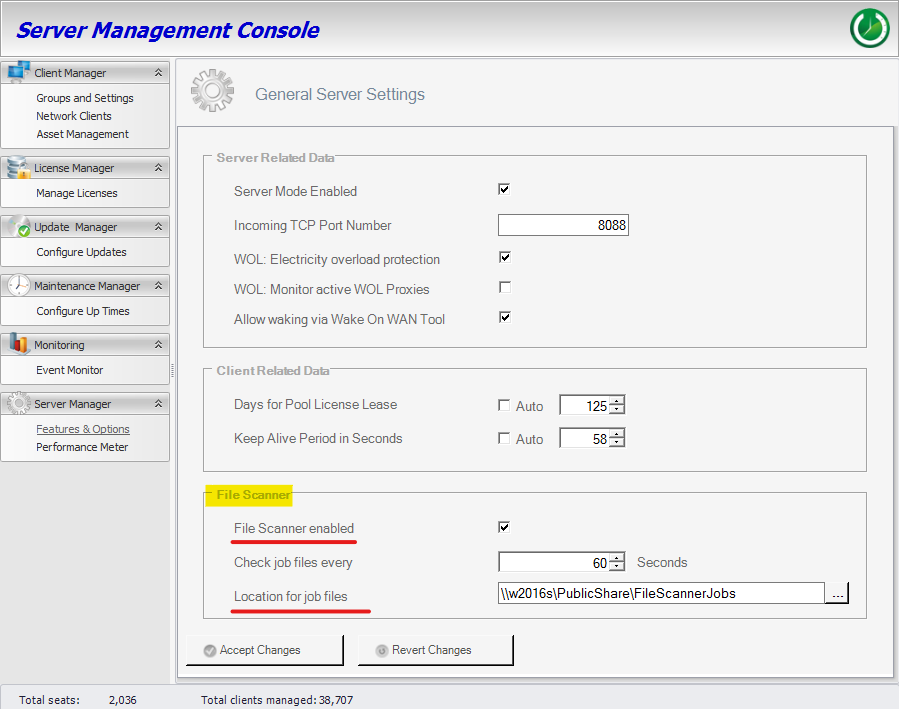
The File Scanner Job Editor must be used on the same machine as the Auto Shutdown Manager Server. It requires no installation: extract it, configure it, and run it on the server. In the ASDM Server Management Console, open Server Manager → Features & Options, enable File Scanner, and configure a job-file location with read/write access for both the Job Editor and the ASDM Server.
How processing works
Know what the server actually processes
WOL Scheduler special case
Keep File Scanner WOL jobs in one dedicated file
If WOL jobs are created through the File Scanner, use one dedicated job file such as AllWOLSchedulerJobs.xml.
Configuration screenshot
ASDM Server File Scanner settings
What to check
Confirm that File Scanner is enabled, the scan interval is appropriate, and the job-file location can be accessed by both the Job Editor and the ASDM Server.
Job Editor example
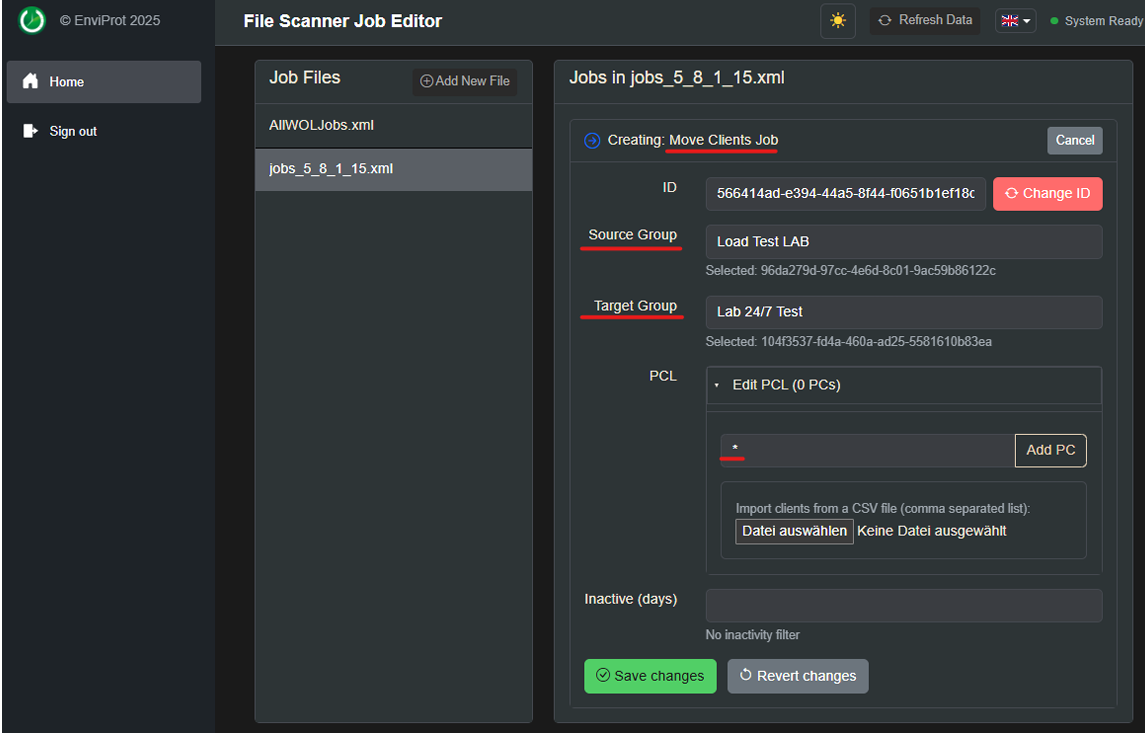
Move clients through a reviewed job file
Why admins use it
The Job Editor lets operators select groups and computers directly instead of manually editing XML. A local administrator can be limited to specific groups, while another administrator may create WOL jobs only for designated groups.
Recommended configuration
Production settings need deliberate choices
Listener and firewall
Typical test access is http://0.0.0.0:8090. Some browsers may enforce HTTPS; for local testing, a private/incognito window can help. For remote access, allow EVPJobEditor.exe or the selected TCP port through the firewall.
Authentication and LDAP
The editor uses ASP.NET Core Identity with optional LDAP verification. If authentication is disabled, a demo user is created automatically.
appsettings.json
Keep HTTP/HTTPS, certificate path, password and redirection settings consistent. Logging can go to console and optionally to a file. UI languages include English, German, Spanish and French.
Troubleshooting
Common mistakes to check
The job does not run. What should I check first?
Confirm that File Scanner is enabled, the job file is valid XML, and the file is in the configured job-file location.
Why did WOL schedules disappear after another file changed?
Keep File Scanner WOL scheduler jobs together in one dedicated file such as AllWOLSchedulerJobs.xml.
Shut down safely. Wake reliably. Prove the savings.
Validate delegated WOL and client-management workflows safely
Use the 45-day Enterprise Trial to test File Scanner jobs, Wake-on-LAN routines, WOL Proxy scenarios and central management with your own operational process.