 DE
DE  EN
EN 
Support · FAQ
Control Modern Standby, scheduled wake-ups and external monitors
Use Auto Shutdown Manager (ASDM) to move Modern Standby devices into a safer low-power state, wake them reliably for scheduled work and switch supported external monitors off while long-running tasks continue.
What ASDM changes
Keep maintenance running without leaving the device and its displays unmanaged
Modern Standby uses the S0 low-power idle model instead of traditional S3 sleep. Scheduled maintenance may not wake reliably, a device can remain active longer than expected, and external monitors can stay on while background work continues. ASDM addresses these gaps with policy-driven hibernation, a dedicated S0 Wake Driver and DDC/CI monitor control on compatible hardware.
What changes in your environment
Where Modern Standby creates operational gaps
S0 is designed for fast resume and connected behavior, but it can complicate unattended maintenance, battery management and thermal control. ASDM lets you define when the device may remain active, when it should hibernate and how scheduled wake events are handled.
Use hibernation when S0 is no longer needed
ASDM can use timers, policy and activity checks to move a device from S0 into hibernation after productive work has ended.
Wake devices for scheduled maintenance
The free S0 Wake Driver is designed to restore dependable ASDM wake events for backups, scans, patching and other scheduled tasks.
Switch supported monitors off during long tasks
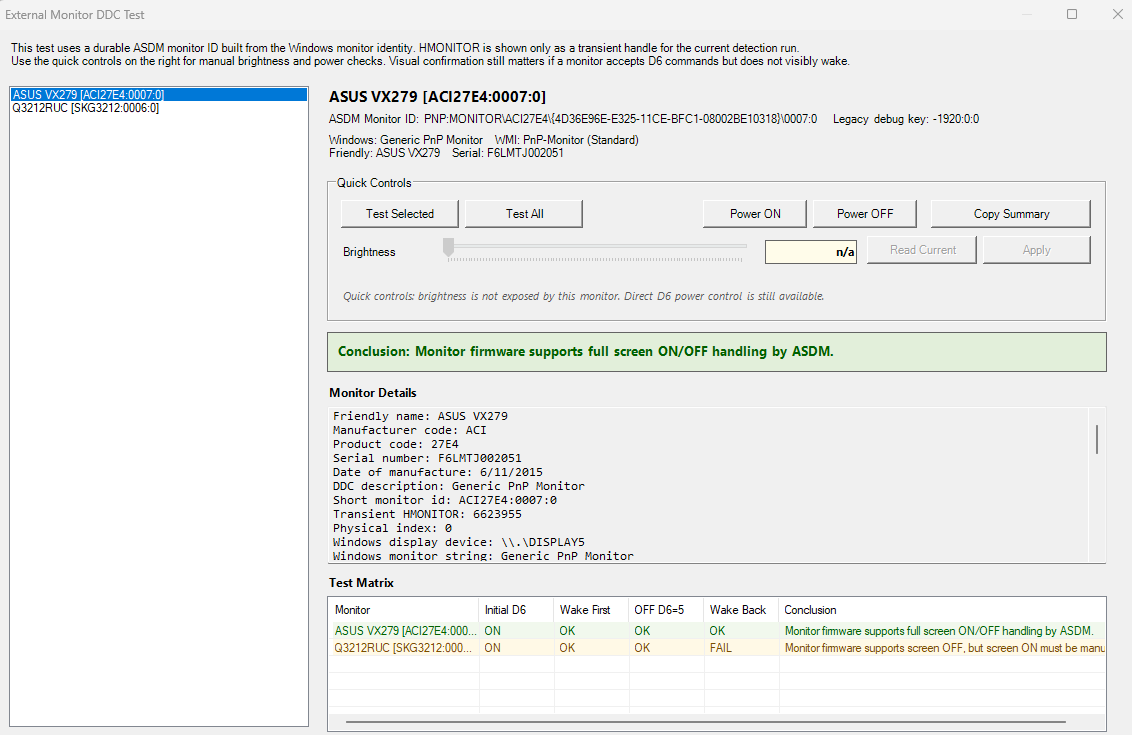
On compatible external displays, ASDM can use DDC/CI to keep the monitors off while the PC continues its work.
External monitor control
Keep supported monitors off while backups and scans continue
Windows can keep a long-running task active, but it does not provide a dependable enterprise control path for switching external monitors off during that task. On compatible systems, ASDM uses DDC/CI to control supported displays without stopping the workload.
See the settings in ASDM
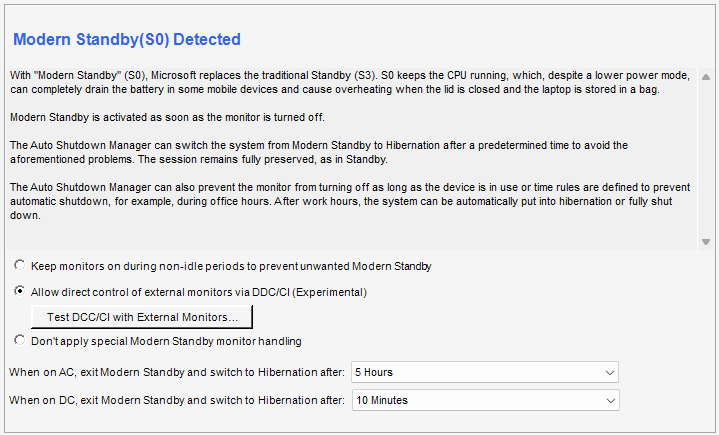
Configure monitor handling for your workflow
Open either image to inspect the full configuration at its original resolution.
Switch supported external monitors off
Keep the PC available for long-running work while compatible external monitors are powered down through DDC/CI.
Keep maintenance running with the screens dark
Backups, scans and other unattended work can continue while compatible monitors remain off.
Decision sequence
How ASDM decides when to reduce power
ASDM does not treat Modern Standby as a simple timeout. It evaluates policy, activity, the requested power state and the user session before it completes the transition.
Check policy and time rules
An enforced shutdown window can start the power-down immediately. If shutdown is allowed, evaluation continues. If it is disallowed, ASDM stops the cycle and checks again later.
Evaluate idle state and remote commands
Mouse, keyboard, network traffic and authorized CPU activity can reset the idle timer. A remote shutdown command can also initiate the transition.
Select the target power state
A remote command can request standby, hibernate, restart, logoff or power-off. In AUTO mode, ASDM uses calendar-based settings or the configured global default.
Warn the user and apply cancellation policy
When a user is logged in, ASDM can play an audible alert, show a 90-second countdown and allow or deny cancellation according to policy.
Save work and complete the transition
ASDM can save supported open documents and run administrator scripts. On Modern Standby systems, it can enter S0 with a hibernation timer and move to hibernation if the timer expires without interruption.
Scheduled wake-ups
Get the free S0 Wake Driver for maintenance windows
Use the S0 Wake Driver when Modern Standby devices do not wake reliably for scheduled maintenance created by ASDM.
Answers for your deployment
Common questions
What is the Modern Standby problem for IT?
Modern Standby uses the S0 low-power idle model. A device can look asleep while remaining partly active, and scheduled maintenance wake-ups can be unreliable on some systems.
How does ASDM reduce battery drain and overheating risk?
ASDM can use timers and policies to move a system from S0 into hibernation after the configured conditions are met. This reduces unnecessary active time and helps prevent devices from remaining active overnight or inside a laptop bag.
What can ASDM do with external monitors?
On compatible systems, ASDM can switch many DDC/CI-capable external monitors off while a long task continues and switch them on again when display output is required.
Does DDC/CI work with every monitor?
No. The monitor and the complete connection path must support DDC/CI. Some docks, KVMs, adapters or monitor models can block the control commands.
Why lock the PC before turning monitors off?
Locking the PC first protects the unattended workstation while backups, scans or maintenance work continue with the external displays off.
Where do I get the S0 Wake Driver?
Shut down safely. Wake reliably. Prove the savings.
Make Modern Standby predictable in your environment
Combine policy-driven hibernation, reliable scheduled wake-ups and external monitor control for safer, lower-energy unattended work.